
Last updated November 15, 2026
The Stratos connects over Bluetooth to Engo HUD glasses, a Soundlink audible altimeter and a Stratos with G-Serve firmware. You can save up to four devices, and the Stratos connects to one at a time.
Saving a device works like pairing headphones with your phone: you search for it once, and after that you select it by name.
Adding a Device #
- Turn on the device, and make sure it is ready to connect.
- From the Connect screen, press the center button, and select an empty row, shown as -new-.
- Select Search HUD, Search Soundlink or Search GServe. The devices found appear below, each with a + in front of its name.
- Select the device. The Stratos connects to it and saves it by name. A Soundlink also needs a passkey, as described in the next section.
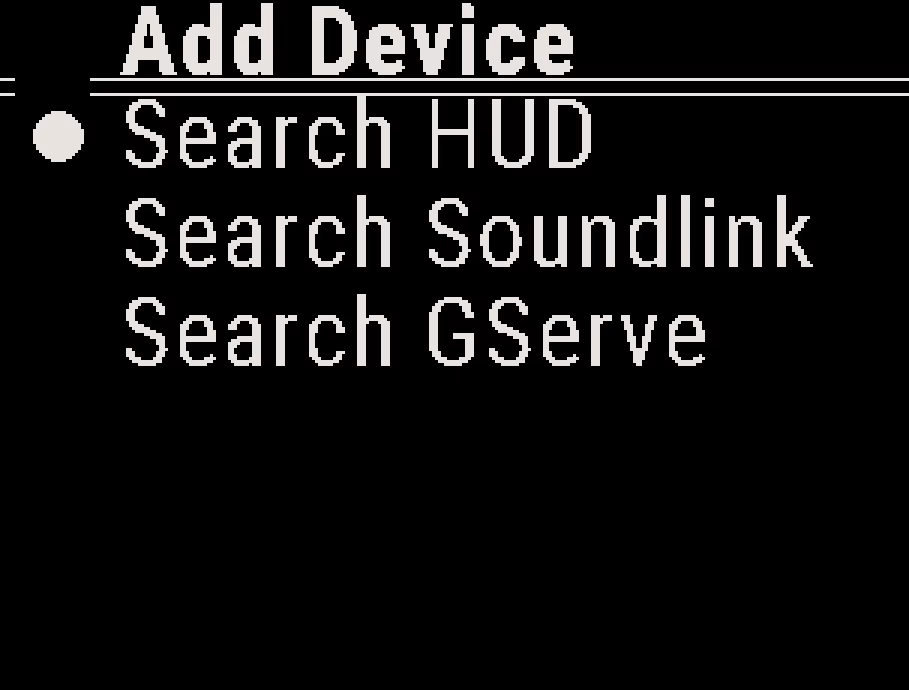
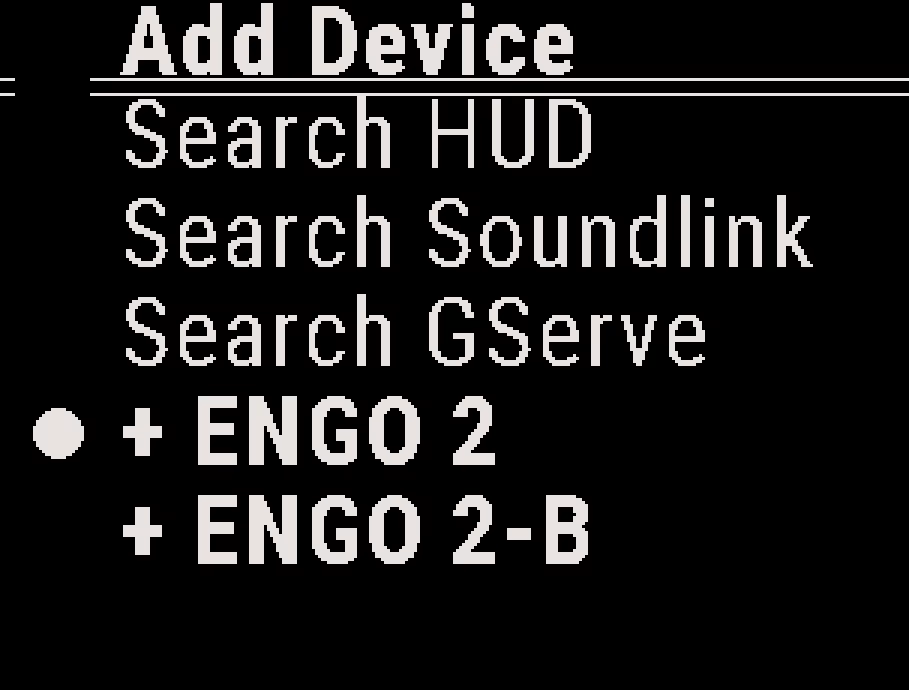
If the Stratos cannot connect, it shows Connect failed. Make sure the device is on and close by, and try again.
Pairing a Soundlink #
When you select a Soundlink, the Soundlink speaks a six-digit passkey and the Stratos opens the Passkey screen.
- Press the up or down button to set each digit of the passkey, and press the center button to move to the next digit.
- After the last digit, the Stratos sends the passkey and shows Pairing success. If it shows Pairing error, add the Soundlink again.

Saved Devices #
The Connect menu lists your saved devices by name. The connected device is shown in bold. Select a device to open its menu.
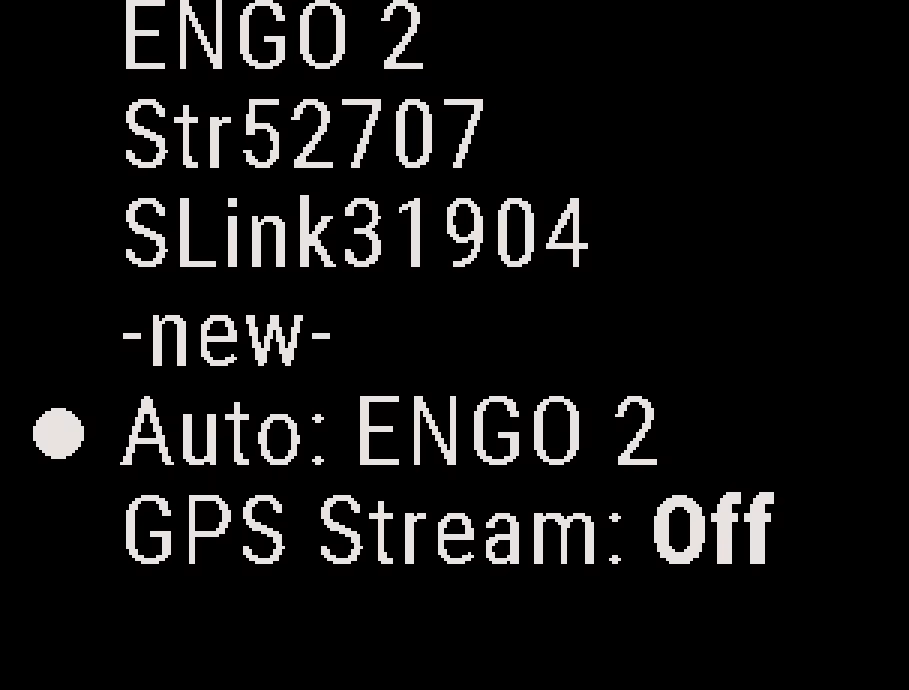
- Connect / Disconnect: Connects to the device, or ends the connection. A disconnected device stays saved.
- Remove: Deletes the device from the list, and ends the connection if it is connected.
The menu of a HUD also sets the HUD fields. See Heads Up Display (HUD) Connect. The menu of a G-Serve has only Connect and Remove. See Stratos G-Serve (GPS Server).
The menu of a Soundlink also has FF Alarms, CP Alarms, Announce and Settings, which set up the Soundlink from the Stratos. They work only while the Soundlink is connected.
Auto Connect #
You can set the Stratos to connect to a saved device by itself in the aircraft.
- From the Connect screen, press the center button.
- Select Auto. Each press of the center button changes the setting to the next saved device. Select None to turn Auto connect off.
In the climb, above about 3,000 ft (900 m), the Stratos searches for the device and shows Auto-Connect Searching. Auto connect does not run while GPS Stream is on.
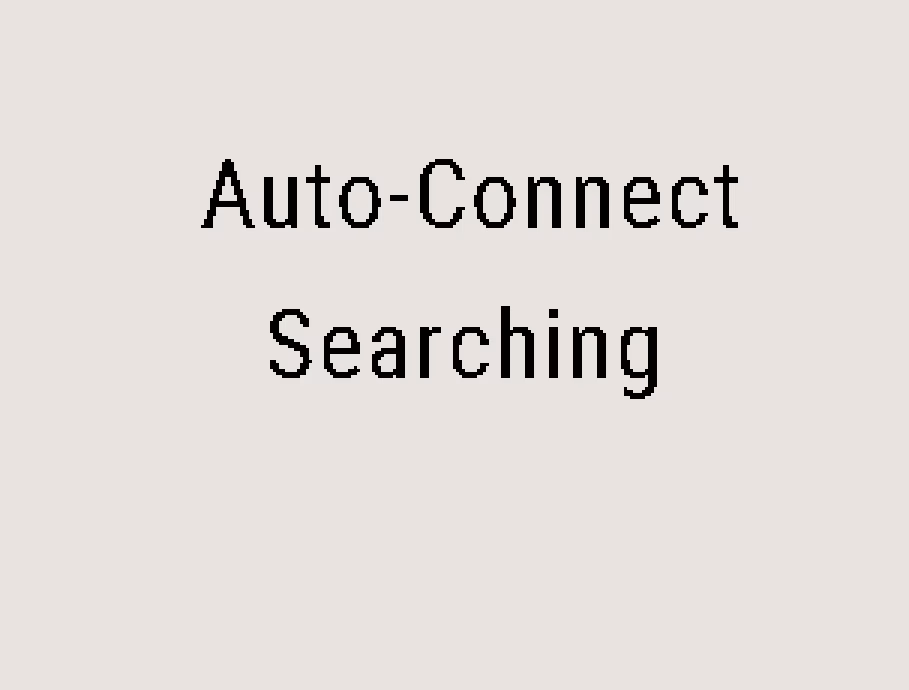
Turn on the HUD glasses or other device before the climb. A Soundlink must be set to turn on its wireless connection by itself, or Auto connect cannot find it.
After you land, the Stratos ends the connection to save battery.
Resetting Bluetooth #
If connectivity stops working after multiple attempts, you can reset Bluetooth on the Stratos. The reset clears every Bluetooth pairing.
From the Home screen, press the center button, and select System → Misc → BLE Reset.
Bluetooth Name #
Each Stratos has a Bluetooth name: Str and five digits, for example Str48213. Phones, apps and other devices show the Stratos by this name. The name appears on the App Connect screen and on the Connect screen while GPS Stream is on. You can change the name with the Deep and Steep app. See Deep and Steep App Overview.


