
Last updated November 15, 2026
The Stratos logs every jump. You can view your recent jumps on the Stratos, your full logbook in the Deep and Steep app, or the logbook file over USB.
The best way to view your full logbook and the details of each jump is the Deep and Steep app. See Deep and Steep App Overview.
Logbook Screen #
The Logbook screen shows today’s date and a summary of the jumps this Stratos has logged.
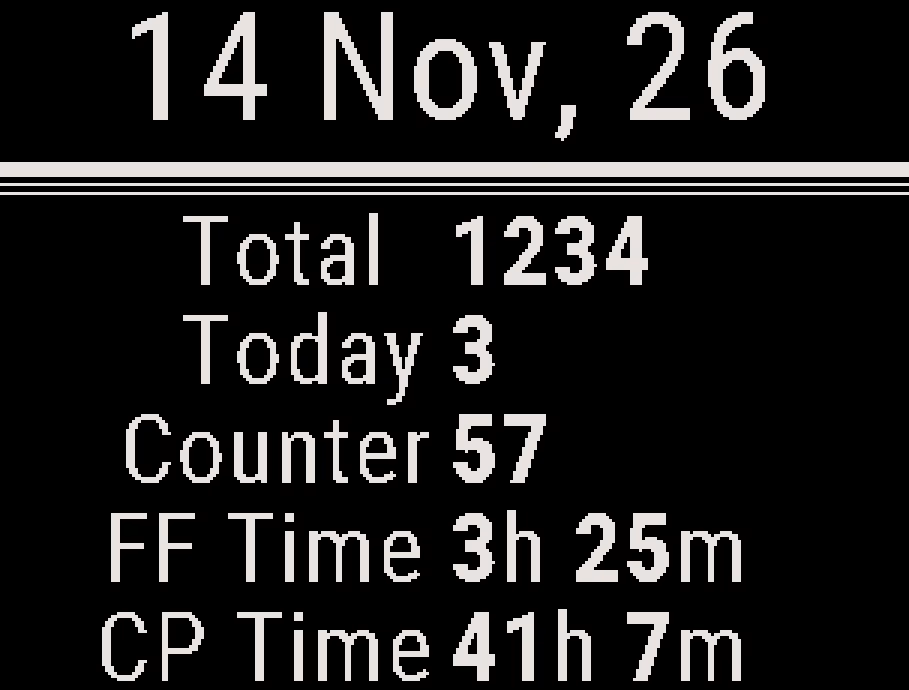
- Total: Displays your jump number.
- Today: Displays the number of jumps today.
- Counter: Displays the jump counter. See Jump Number and Jump Counter.
- FF Time: Displays the total freefall time this Stratos has logged.
- CP Time: Displays the total canopy time this Stratos has logged.
While the GPS recording lock is on, the Stratos does not add jumps to the logbook or to Recent Jumps. See GPS Recording Lock (OpSec).
Viewing Recent Jumps #
The Stratos keeps your 16 most recent jumps. Each jump has a Summary page, a Freefall page and a Canopy page.
- From the Logbook screen, press the center button. The Summary page of your most recent jump opens.
- Press the down button to move to the Freefall page, the Canopy page and then the next older jump. Press the up button to go back.
- Press the center button to return to the Logbook screen.
If you have no jumps logged, the Stratos shows No Jumps.
Summary Page #
The top of the page shows the jump number, date and time.
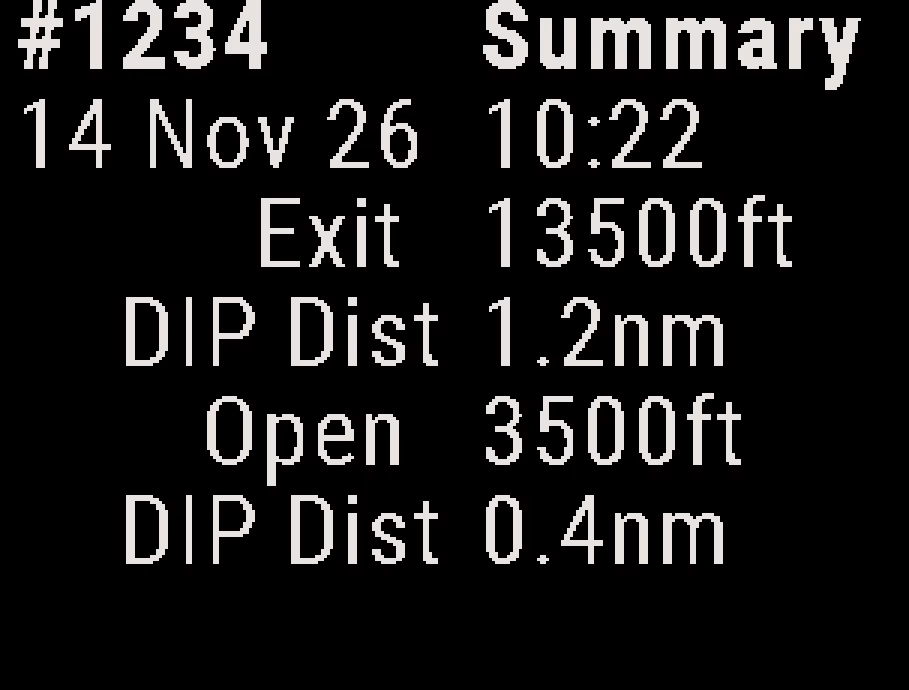
- Exit: Displays the exit altitude.
- DIP Dist (under Exit): Displays the distance from the exit point to the DIP.
- Open: Displays the opening altitude.
- DIP Dist (under Open): Displays the distance from the opening point to the DIP.
- DIP Offset: Displays the DIP offset used on the jump. It appears only when an offset was set.
- DIP mb: Displays the DIP pressure used on the jump. It appears only when a DIP pressure was set.
The DIP distances need a DIP set before the jump. See GPS Markers – DIP and HARP and DIP Offsets: Altitude and Pressure (QFE).
Freefall Page #
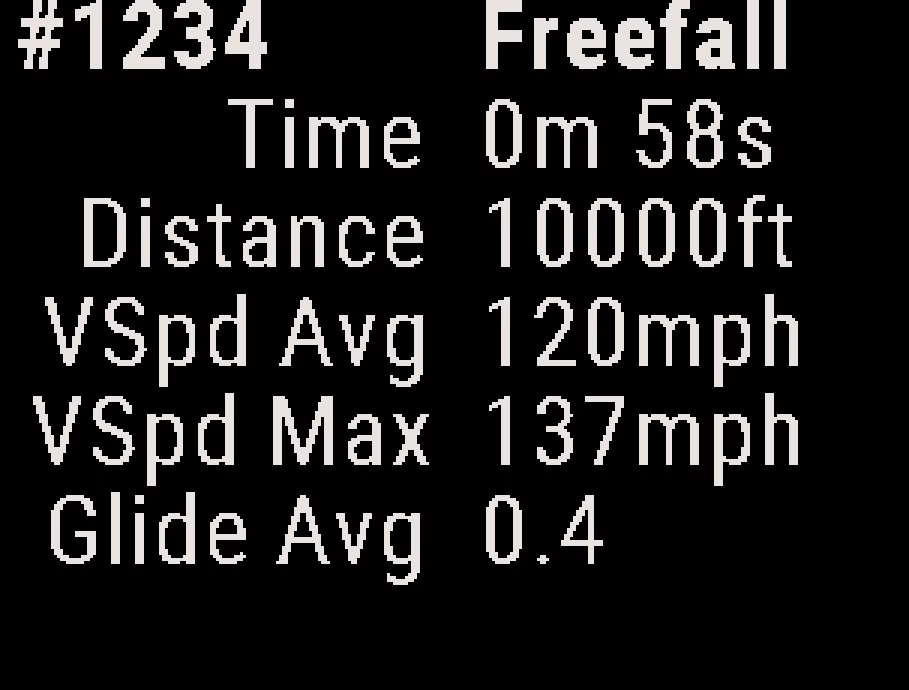
- Time: Displays the freefall time, from exit to opening.
- Distance: Displays the straight-line distance from the exit point to the opening point, in altitude units. It is not the distance you flew on an angle or wingsuit jump.
- VSpd Avg: Displays the average vertical speed in freefall.
- VSpd Max: Displays the maximum vertical speed in freefall, measured by GPS.
- Glide Avg: Displays the average glide ratio in freefall. A value of 0.6 is a glide ratio of 0.6 to 1.
Canopy Page #
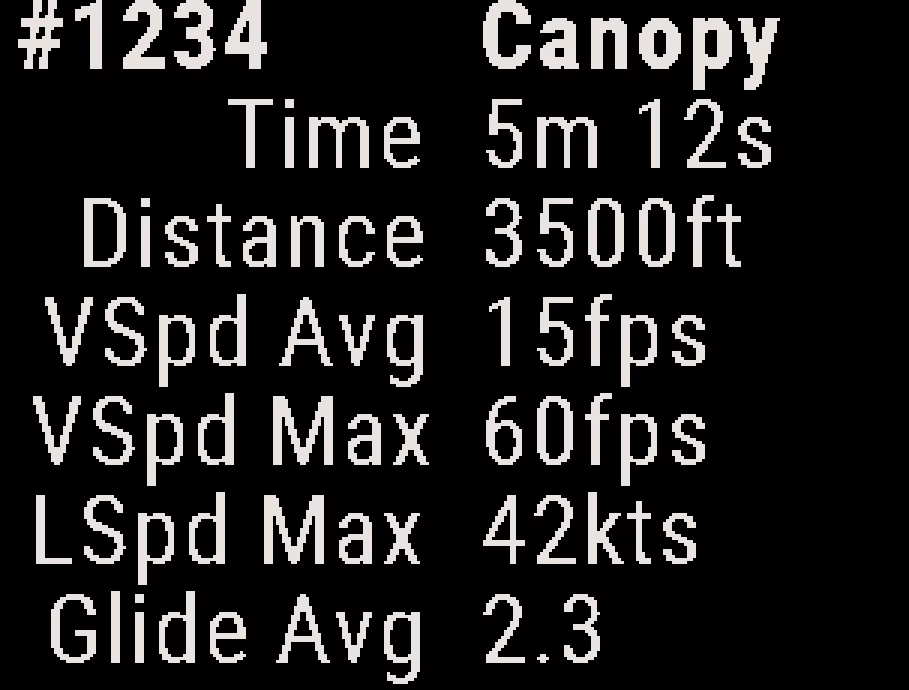
- Time: Displays the canopy time, from opening to landing.
- Distance: Displays the straight-line distance from the opening point to the landing point, in altitude units. It is not the distance you flew under canopy.
- VSpd Avg: Displays the average vertical speed under canopy.
- VSpd Max: Displays the maximum vertical speed under canopy, measured by GPS.
- LSpd Max: Displays the maximum ground speed on landing, in ground speed units.
- Glide Avg: Displays the average glide ratio under canopy. A value of 2.0 is a glide ratio of 2 to 1. GPS measures speed over the ground, so the wind changes this value.
For the full flight path of a jump, view its GPS track in the Deep and Steep app. See GPS Track Sync and View.
Deleting a Jump #
You can delete a jump from the logbook and from Recent Jumps. You can delete a jump only on the ground, not in the aircraft or during a jump.
- From the Home screen, press the center button, and select Logbook.
- Select an option:
- To delete your most recent jump, select Delete Last Jump. The Stratos also lowers the jump number and the jump counter by 1.
- To delete a jump by its number, select Delete Jump #, and enter the jump number. Press the up or down button to set each digit, and press the center button to move to the next digit. The jump number and the jump counter do not change.
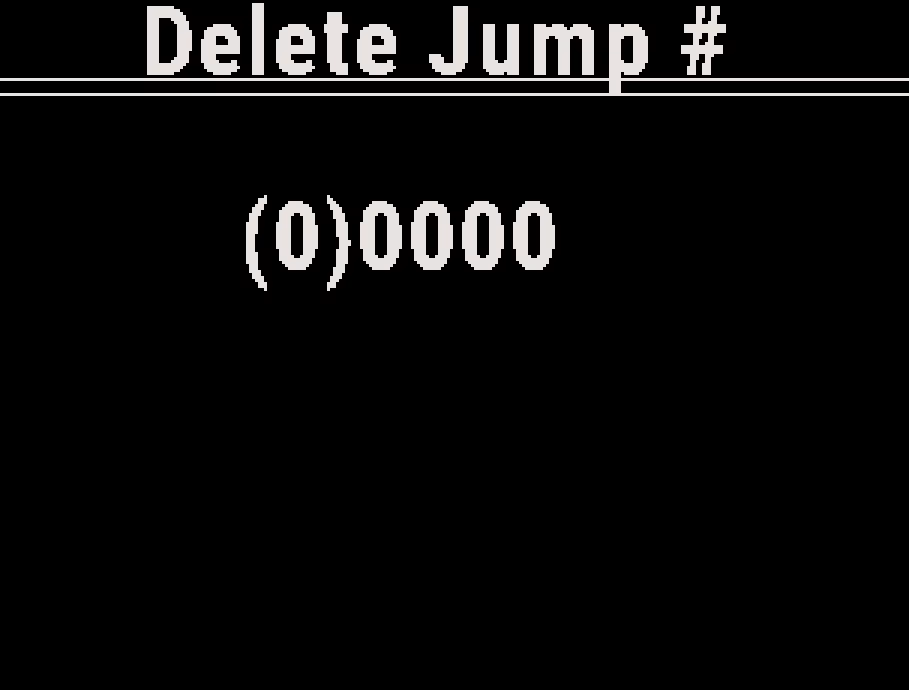
You can also delete a jump with the Deep and Steep app. See Deep and Steep App Overview.
Logbook in the App #
The Deep and Steep app holds your full logbook and the GPS track of each jump. The Stratos sends its logbook and tracks to the app when you connect with App Connect. See App Connect and GPS Track Sync and View.
Downloading the Logbook File #
You can copy the full logbook to a computer as a CSV file, logbook.csv. You can open it in a spreadsheet program or import it into a logbook app. Altitudes and distances in the file are in meters, and speeds are in meters per second. Download a sample logbook.csv file.
Warning
Exit USB Connect mode before you board the aircraft. The Stratos does not work as an altimeter in USB Connect mode, and exiting the mode in flight causes incorrect altitudes during your jump.
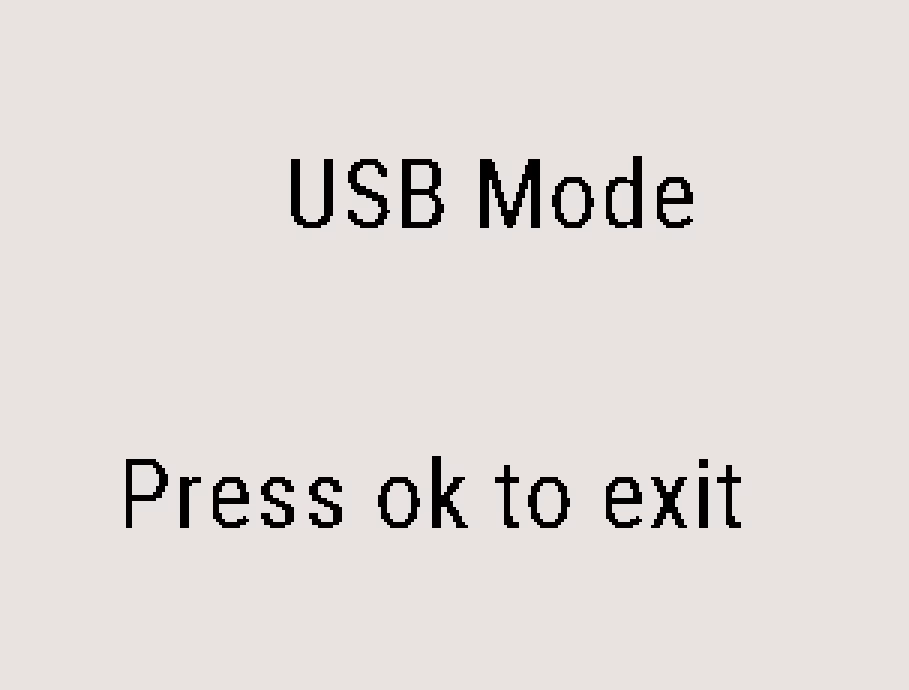
- From the Home screen, press the center button, and select System → USB Connect. The Stratos restarts in USB Connect mode.
- Connect the Stratos to your computer with a USB-C data cable. The Stratos shows up as a new drive.
- Open the drive, and copy logbook.csv to your computer.
- Eject the drive on your computer, and disconnect the cable.
- Press the center button. The Stratos restarts as an altimeter.
Caution
Do not edit logbook.csv on the Stratos. A damaged file can stop the Stratos from logging new jumps, and the only fix is to delete the whole logbook.
Always eject the drive before you disconnect the cable. Disconnecting first can damage the file system and lose your logbook and GPS tracks.


