
Last updated November 15, 2026
G-Serve is firmware for the Stratos that turns it into a GPS server for the aircraft. A Stratos with G-Serve firmware stays in the aircraft, where it has a clear view of the sky, and shares its GPS position with up to three connected Stratos units. It also loads satellite data into each connected Stratos, so that Stratos finds its own GPS fix faster after exit.
Warning
A Stratos with G-Serve firmware is not an altimeter. It shows no altitude above the ground, logs no jumps and records no GPS tracks. It is meant to be left inside the aircraft. Never jump with it as an altimeter.
How It Works #
In a large aircraft with poor GPS reception, a Stratos may not find satellites until after exit. Placed where it can see the sky, for example at a window, the G-Serve gives the jumpers’ units its position and its satellite data.
- Position: When a jumper’s Stratos has no GPS fix of its own, it uses the position from the G-Serve. Its own GPS always comes first. The GPS screen, the distance and bearing to the DIP and HARP, and the HARP ETE then work in the cabin.
- Satellite data: The G-Serve sends its satellite data to each connected Stratos, which loads it into its own GPS. After exit, the jumper’s Stratos finds its own fix quickly.
- Up to three units: Up to three Stratos units can connect at the same time. This is a Bluetooth hardware limit.
- After exit: Each connected Stratos ends the link and uses its own GPS.
Note
Any Stratos within range can connect to a Stratos with G-Serve firmware. There is no pairing and no passkey: the first three units to connect take the three slots.
Only a Stratos with firmware 1.06g or later can connect. While it is connected to a Stratos with G-Serve firmware, a Stratos has no other wireless link: no HUD glasses, Soundlink, GPS Stream (ATAK) or App Connect.
Setting Up a Stratos with G-Serve Firmware #
- Load the G-Serve firmware on the Stratos you will leave in the aircraft. See Stratos Firmware Update.
- Press the center button to turn it on. It shows GServe, System check, GPS start and Ready!, and then its Home screen.
- Place it in the aircraft where it has the best clear view of the sky. See GPS Signal Best Practices.
- Wait for GPS: On and a satellite count next to Sats. Jumpers can connect now. Their units get its position as soon as it has a GPS fix.
- Wait for Aid: Ready. The jumpers’ units can then receive satellite data. Collecting the satellite data can take several minutes after the GPS starts.
- Leave Serve set to On (see Buttons and Menu below), so the GPS and Bluetooth stay on through boarding and the climb.
Main Screens #
Press the up or down button to move between the three main screens: Home, Connections and GPS Info.
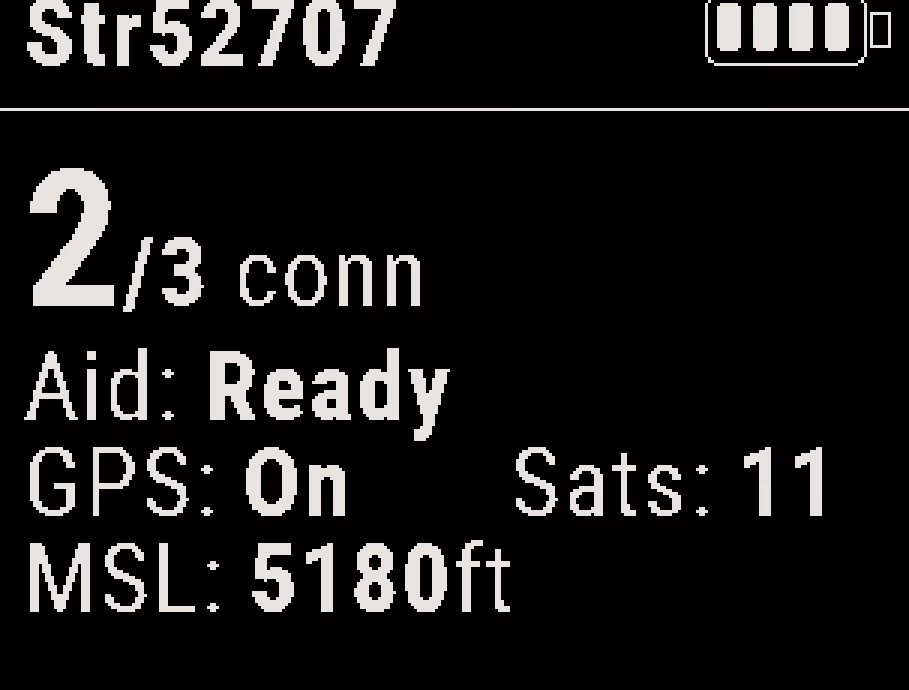
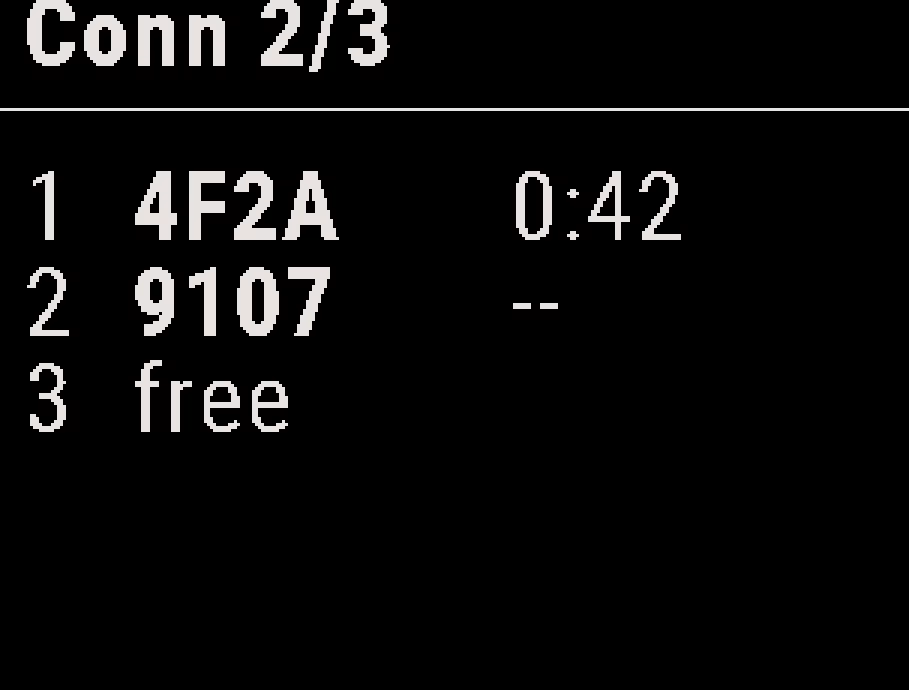
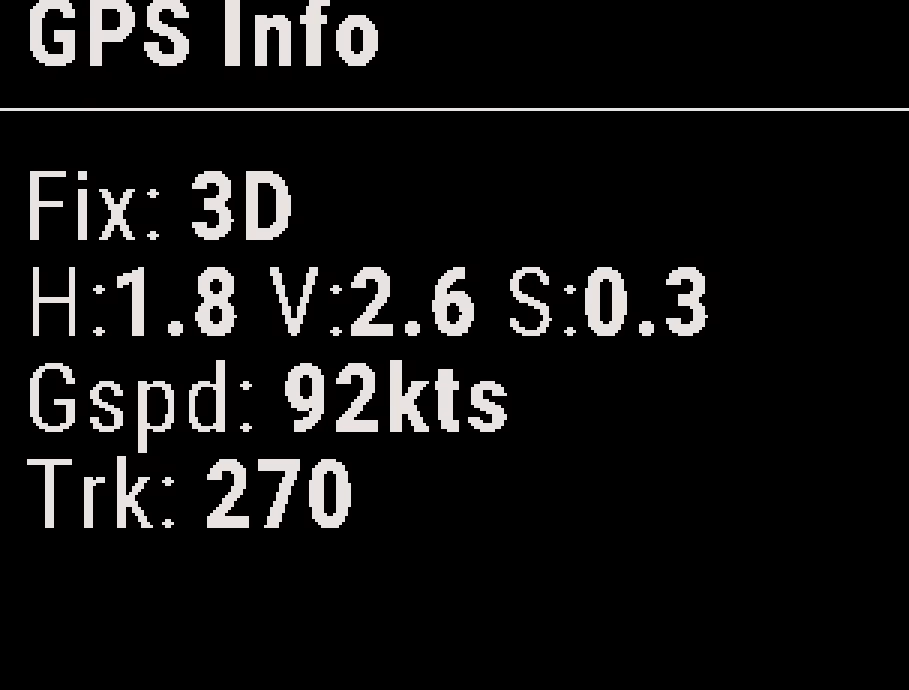
| Screen | What it shows |
|---|---|
| Home |
|
| Conn | The 3 slots for connected units. Each slot reads free or shows a connected Stratos, with the time since that unit last received satellite data. |
| GPS Info | Fix (None, 2D, 3D and others), the accuracy figures H, V and S in meters, the ground speed (Gspd) and the track (Trk). |
| Aid shows | Meaning |
|---|---|
| Ready | It has the satellite data and sends it to any unit that asks. |
| eph or alm and a count | It is still collecting satellite data. Wait. |
| sending and a count | It is sending satellite data now. |
| hold and a time | It has just sent satellite data and is pausing. Wait. |
| — | The GPS is off. |
Buttons and Menu #
| Button | Action |
|---|---|
| Up / Down | Moves between the main screens; in a menu, moves to the next item |
| Center | Opens the menu; in a menu, selects the item or changes the setting |
| Up (hold 1 second) | Returns to the previous menu |
| Down (hold 1 second) | Returns to the Home screen |
The buttons work only on the ground and in the climb.
| Menu item | What it does |
|---|---|
| Light: auto / on | Sets the display light. The auto option turns on the light for 15 seconds after a button press when it is dark. The on option keeps the light on. The light returns to auto when you turn the unit on. |
| Serve: On / Auto | Sets when the GPS and Bluetooth are on. The On option keeps both on all the time, which is best for sending satellite data. The Auto option turns them on only in flight, and only briefly on the ground. Auto saves battery, but jumpers cannot connect on the ground, and Aid may never reach Ready. Serve returns to On when you turn the unit on. |
| System → Firmware | Displays the firmware version and build date, and opens firmware update mode. See Stratos Firmware Update. |
| System → Shutdown | Turns the unit off (on the ground only). |
| Settings → Units | Sets the units for Altitude, Distance, climb speed (Asc Vspd), freefall speed (FF Vspd), canopy speed (CP Vspd) and ground speed (Gspd). |
| Settings → Date & Time | Sets the Hour Type (12-hour or 24-hour), the time (Set Time) and the date (Set Date). |
| Help | Displays short help on the unit: Buttons, Home Screen, Links, Aiding and Serve Mode. Press the center button to turn to the second page. |
A Stratos with G-Serve firmware has no USB Connect or App Connect. To use them, load the altimeter firmware again.
Connecting a Stratos to the G-Serve #
On each jumper’s Stratos:
- From the Home screen, press the down button twice to open the Connect screen, and press the center button.
- Select an empty row, shown as -new-.
- Select Search GServe. Wait a moment shows while it searches.
- Select the name of the Stratos with G-Serve firmware (for example + Str52707). It connects with no passkey and saves the name in that row.
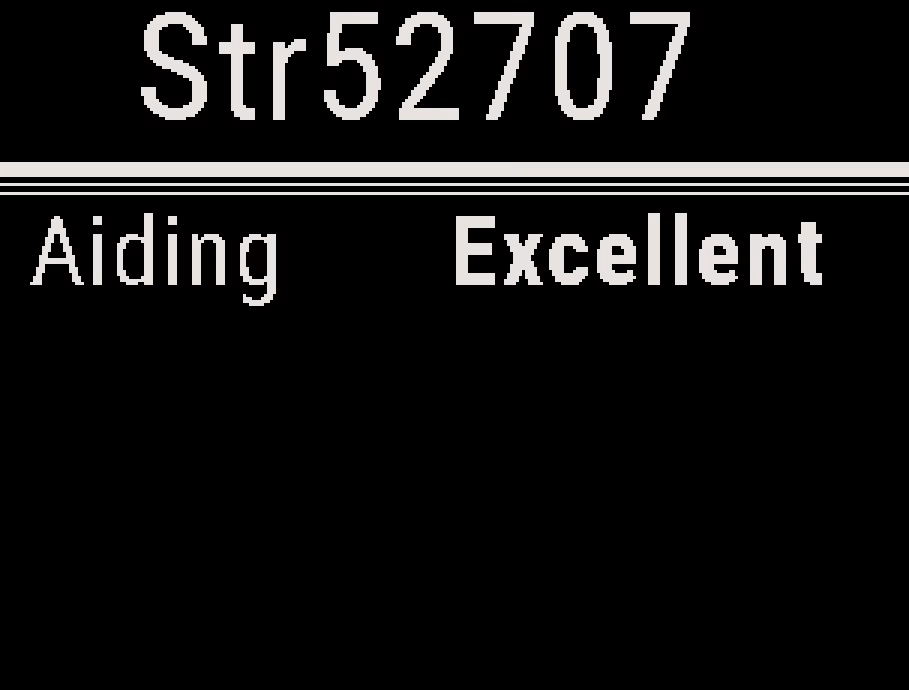
While the Stratos is connected, the Connect screen shows the name and Aiding:
| Aiding shows | Meaning |
|---|---|
| — | No satellite data received yet |
| Excellent | Satellite data less than 1 hour old |
| Fair | Satellite data 1 to 3 hours old |
| Poor | Satellite data more than 3 hours old |
To connect again later, select the saved name, and select Connect. Remove deletes it from the list. To connect without pressing a button, set Auto in the Connect menu to the saved name: the Stratos then connects by itself in the climb, above about 3,000 ft (900 m). To get position and satellite data on the ground or early in the climb, connect by hand. See Wireless Connectivity and Saved Devices.
After Exit #
You do not need to do anything in freefall or under canopy. After exit, each connected Stratos ends the link, turns Bluetooth off and uses only its own GPS.
After landing, the link stays off. Connect by hand again, or let Auto connect in the next climb.
If the Link Drops #
If the link drops in the aircraft, the Connect screen shows Connection Lost… and the Stratos tries to reconnect for a few minutes. If it cannot reconnect, it turns Bluetooth off. Connect again from the saved name.
Battery and Shutdown #
- A Stratos with G-Serve firmware turns off 14 hours after you turn it on. In the last hour, its Home screen shows Shutdown and the minutes left.
- It also turns off on the ground when the battery is low. When the battery is nearly empty, its GPS and Bluetooth turn off first.
- When it turns off, every connected Stratos loses the link.
- A jumper’s Stratos keeps its own GPS on while it is connected, so it uses more battery than usual.
Charge both before the flight. See Stratos Tactical GPS Altimeter Overview.


