
Table of Contents
Updating the firmware on your Soundlink involves copying a firmware file from your computer. The same steps apply whichever firmware version your Soundlink is running.
What you’ll need
- Your Soundlink audible altimeter
- A USB-C cable
- A computer
- A small pointed object, such as a paperclip
- The latest firmware file (.UF2), downloaded to your computer
To check your firmware version, connect the Soundlink to the Deep and Steep app, which shows the firmware version currently installed. See Soundlink Wireless Connect (Bluetooth) for how to connect.
Tip
To exit firmware update mode, perform a forced restart by pressing the reset button once. Your altimeter will restart without the update and work as normal.
Updating the Firmware #
Firmware update mode is entered with a double press of the reset button, the small button inside the hole in the top right of the case.
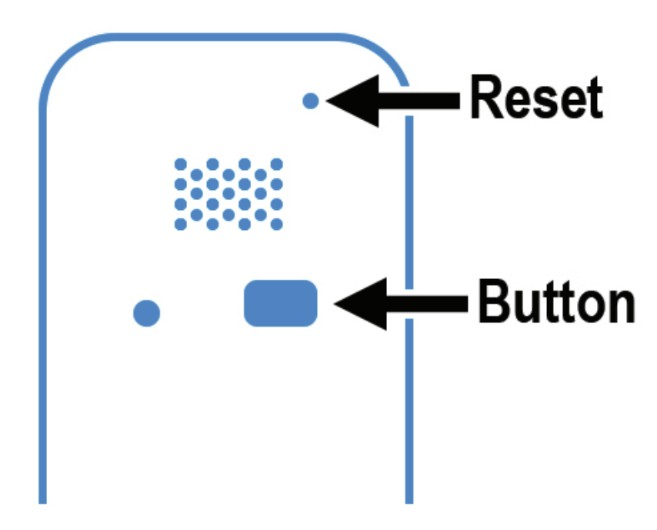
- Ensure your Soundlink is not connected to the computer. Unplug your Soundlink before entering firmware update mode.
- Insert the pointed object into the small hole in the top right of the case.
- Double press the reset button: press the small button inside the hole twice in quick succession. The Soundlink enters firmware update mode.
- Connect your Soundlink to the computer using the USB-C cable.
- Open your computer’s file manager and look for a new connected device.
- Copy the firmware file to this USB drive. The firmware file is the .UF2 file you downloaded from the checklist above.
- After the file copy completes, your Soundlink will restart itself. Listen for the restart sequence: the Soundlink says “Soundlink”, then announces the battery level.


