
Last updated November 15, 2026
App Connect links the Stratos to the Deep and Steep app over Bluetooth, to transfer settings, the logbook and GPS tracks.
To install the app, see Deep and Steep App Overview.
Starting App Connect #
- From the Home screen, press the center button, and select System → App Connect. The App Connect screen shows the Bluetooth name of your Stratos and the current altitude.
- Connect to the Stratos from the app.
- Stay on the App Connect screen until the app is finished. While files transfer, the screen shows File Transfer.
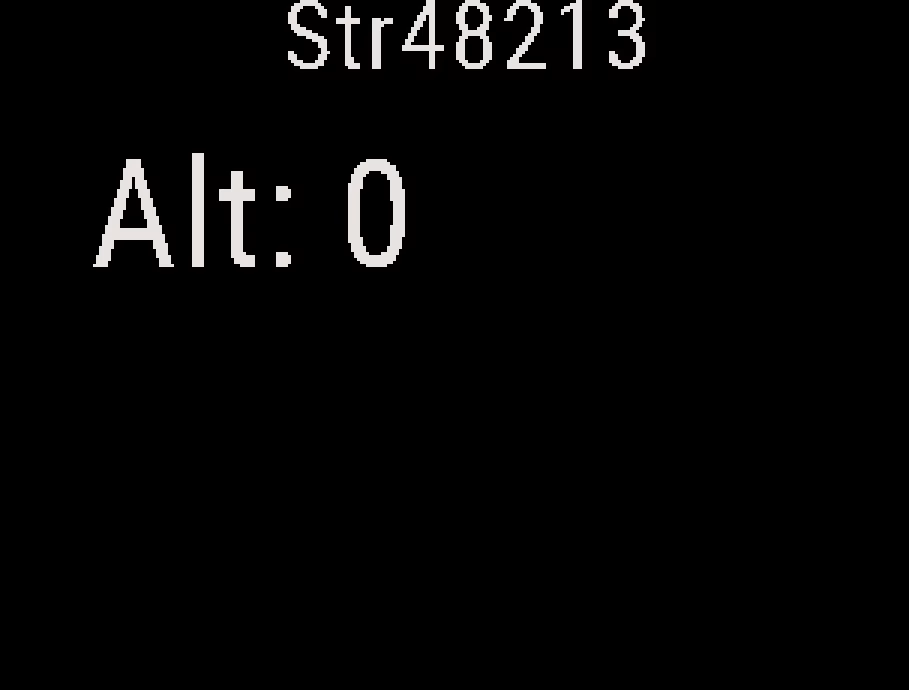
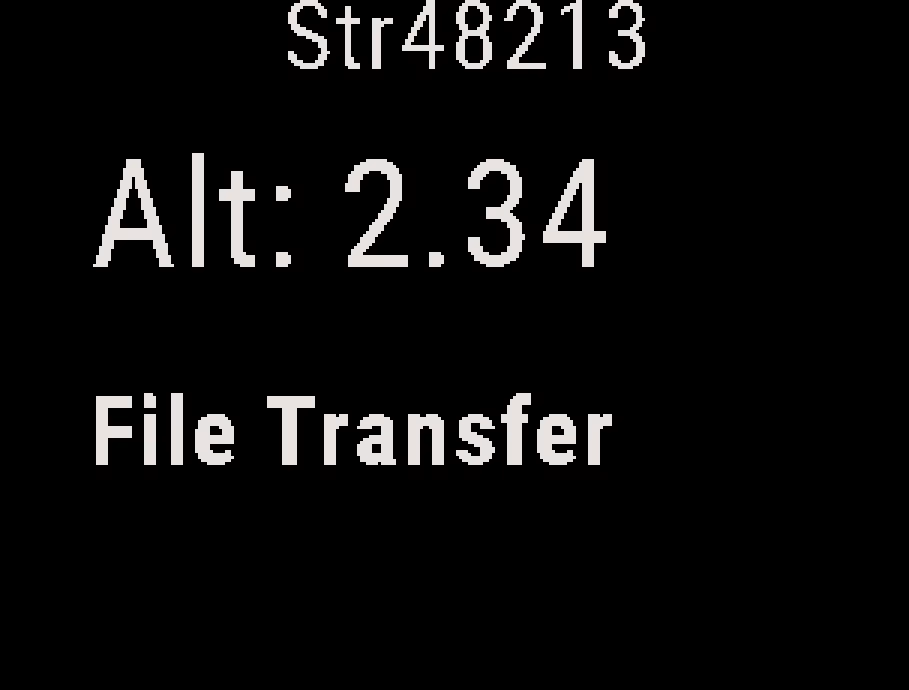
Starting App Connect ends any connection to a HUD, a Soundlink, a G-Serve or GPS Stream.
The Stratos keeps tracking your altitude in App Connect, so you can transfer data in the aircraft.
Pairing Your Phone #
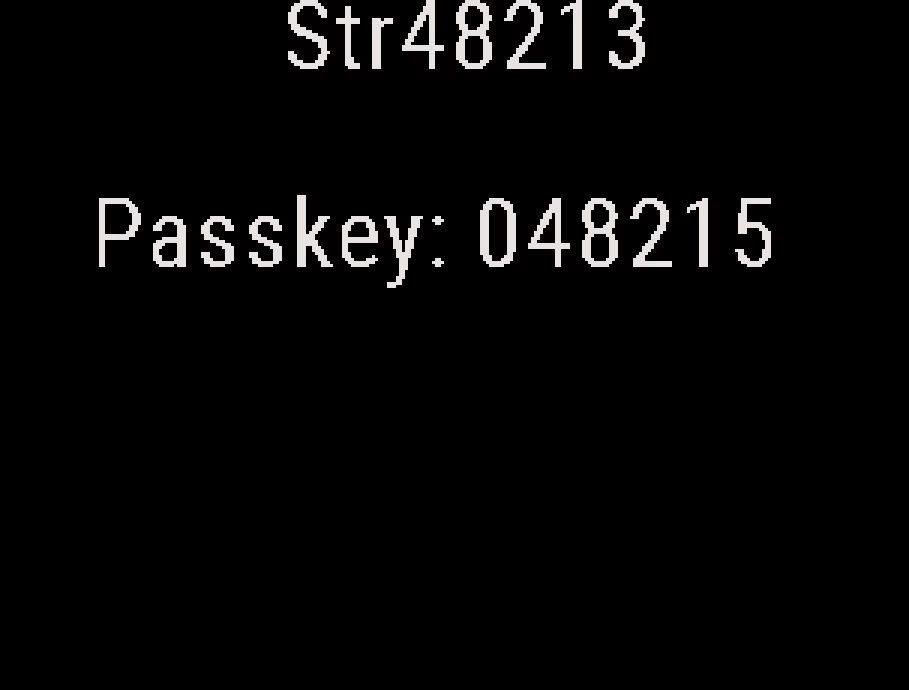
The first time your phone connects, the App Connect screen shows a six-digit passkey. Enter it on your phone when the phone asks for it.
App Features #
See Deep and Steep App Overview.
Ending App Connect #
Press the center button to end App Connect and return to the menu. Any transfer in progress stops. Leaving the App Connect screen ends the connection and turns Bluetooth off.
Warning
Always end App Connect before you jump. Do not rely on the Stratos to switch to the altitude screen by itself.


