
Last updated November 15, 2026
The Stratos connects over Bluetooth to Engo heads-up display (HUD) glasses and shows altitude and GPS data, projected in front of you.
The Stratos works with Engo 2 and Engo 3 glasses, sold separately.
Suggested Minimum Experience #
- Have a USPA B license or equivalent before you use HUD glasses.
- Meet the USPA currency guidelines for your license level before you wear the glasses on a jump.
- Get used to the HUD on a few easy solo jumps with your normal equipment.
Placing the Stratos #
Wear the Stratos where you can see its screen, for example on a wrist mount or a mudflap mount. This keeps the Bluetooth connection strong and gives you the Stratos display as a backup.
The connection can be blocked if the Stratos is in a back pocket, in a wingsuit wing pocket or on the back of a helmet.
Warning
If the connection is lost during a jump, you must be able to use the Stratos display as your primary altimeter. Do not use the HUD glasses as your only visual altitude reference.
Connecting the HUD #
Add the glasses from the Connect menu with Search HUD. After that, the Stratos saves them by name, and you can set them to connect by themselves in the climb. See Wireless Connectivity and Saved Devices.
While the HUD is connected, the Connect screen shows the glasses’ name and the field on each line. After you land, the Stratos ends the connection.
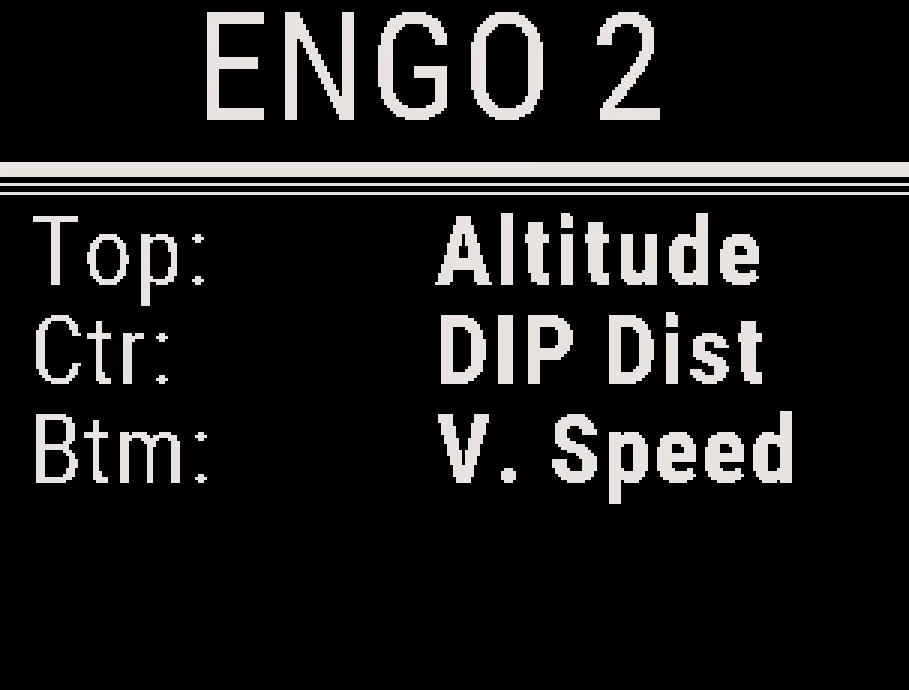
Setting the HUD Lines #
The HUD shows up to three lines. Through the glasses, the lines appear a few feet in front of your right eye, slightly up and to the left. They stay out of the way until you look at them.
- Turn on the glasses, and connect them.
- From the Connect screen, press the center button, and select the glasses by name.
- Select Top, Ctr or Btm for the top, center or bottom line. Each press of the center button changes the line to the next field.
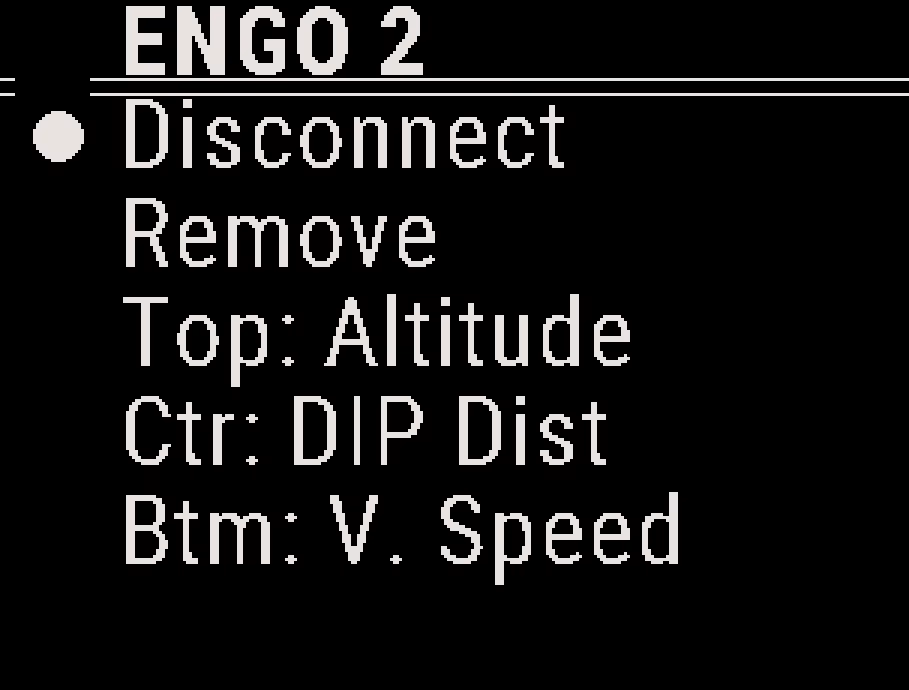
The field on each line shows only while the glasses are connected.
HUD Fields #
Each line can show Altitude, G. Speed, G. Track, DIP Dist, V. Speed, DIP Glide, Cur. Glide or Turn to DIP. Set a line to None to leave it empty.
The fields are the same as on the altitude screen, plus Altitude. See Altitude Display Configuration. With an active HARP, DIP Dist and Turn to DIP show the HARP during the climb, the same as the altitude screen.
Factory Setting #
A newly added HUD shows Altitude on the center line and nothing on the top and bottom lines.


