
Last updated November 15, 2026
The Stratos records a GPS track of every jump automatically, and you can record by hand for other activities. You can view your tracks in the Deep and Steep app, or copy them from the Stratos as CSV files. For operational security, you can turn off recording completely.
Recording Modes #
- From the GPS screen, press the center button.
- Select Rec. Each press of the center button changes the setting to the next mode.
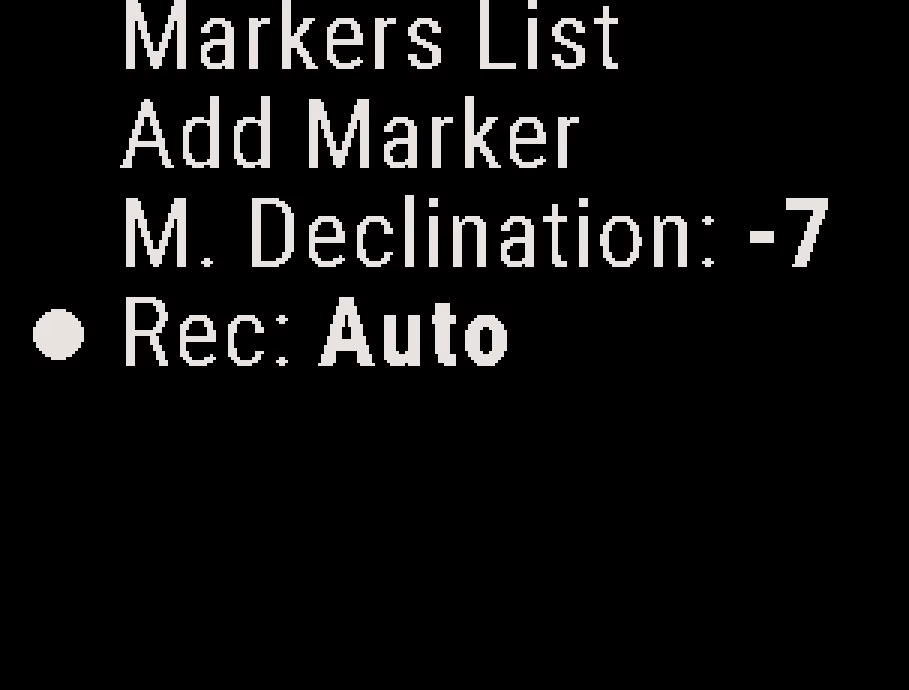
Auto #
The Stratos records every jump automatically. On the ground, the GPS is in low-power mode to save battery. When the Stratos detects the climb and is above about 330 ft (100 m), it starts a track and records:
- every 30 seconds in the aircraft
- 3 to 4 times per second in freefall and under canopy
After landing, the GPS returns to low-power mode until the next climb.
Manual (Low) #
Turns the GPS on and starts recording immediately, even on the ground. It records:
- every 30 seconds on the ground and in the aircraft
- 3 to 4 times per second in freefall and under canopy
After landing, the mode changes back to Auto.
Manual (High) #
Turns the GPS on and records 3 to 4 times per second the whole time. Use it away from the dropzone for other activities, such as BASE, speed flying and paragliding.
It records until you change back to Auto. If you make a jump, the mode changes back to Auto after landing.
Disabled #
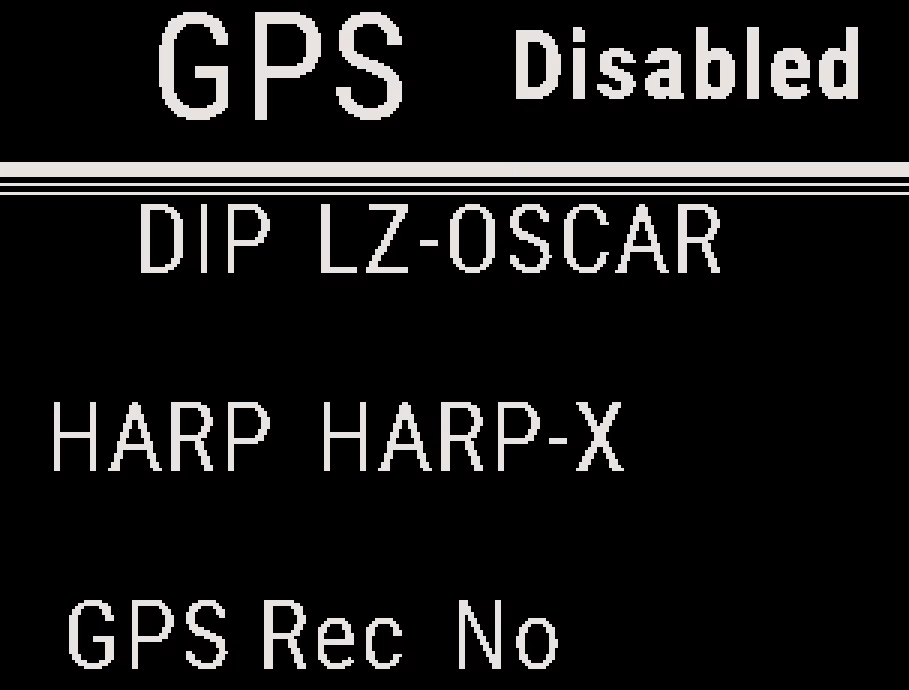
Records no track. The GPS still turns on in the aircraft for navigation, and returns to low-power mode after landing.
Note
In the aircraft, in freefall and under canopy, the GPS still works for navigation. Only track recording is off.
Locked #
Appears when GPS recording is locked with a PIN. You cannot change the mode until you remove the lock. See GPS Recording Lock (OpSec).
Note
Manual (Low) and Manual (High) change back to Auto after landing and after a forced restart. Disabled stays set until you change it.
Recording Status on the GPS Screen #
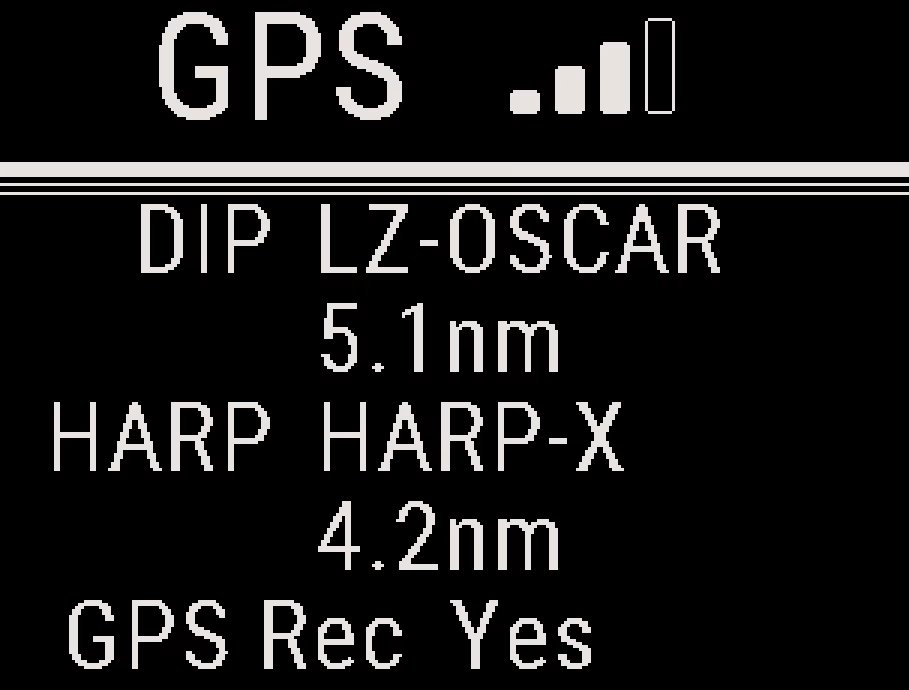
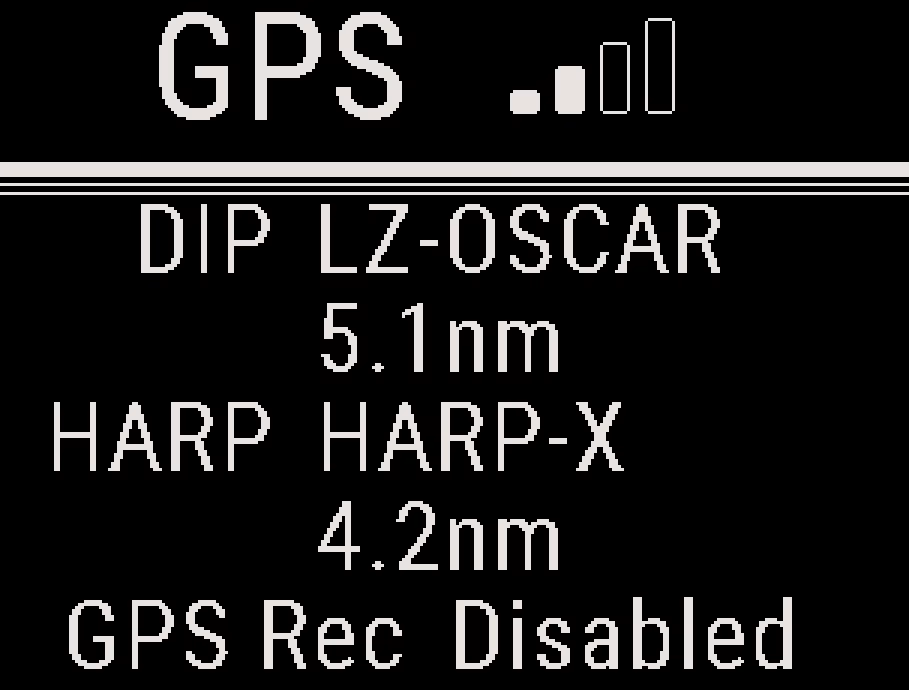
| GPS Rec shows | Meaning |
|---|---|
| Yes | A track is recording now |
| No | Not recording now (for example on the ground in Auto) |
| Disabled | The recording mode is Disabled |
| Locked | Recording is locked with a PIN |
When the battery is nearly empty, the GPS turns off and the GPS screen shows Disabled in place of the signal bars.
GPS Track Files #
The Stratos stores the track files in its memory. To get them, use the Deep and Steep app (see Deep and Steep App Overview), or connect the Stratos to a computer with USB Connect.
- Skydive tracks are in the
skydive_tracksfolder, namedgps_XXXXX.csvwhere XXXXX is the jump number. Jump 123 has the trackgps_00123.csv. - Tracks recorded in a manual mode without a jump are in the
other_tracksfolder, with a random number in the name. To find one, sort the files by date created. - If a manual recording includes a jump, the Stratos renames the track with the jump number and moves it to
skydive_tracks.
Note
When the memory runs low, the Stratos deletes the oldest tracks: the oldest manual tracks first, then the oldest skydive tracks. Copy any track you want to keep.
For more on reading track data, see Understanding GPS Track Data.
GPS System Settings #
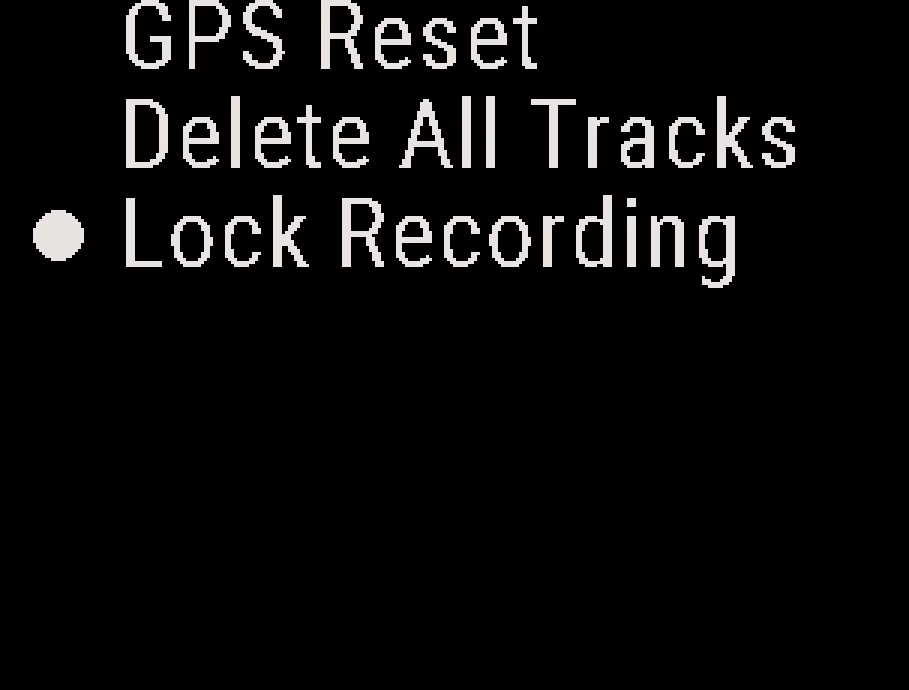
From the Home screen, press the center button, and select System → GPS.
GPS Reset #
Resets the GPS receiver. Use it when the GPS shows 0 bars in an open area with a clear view of the sky, or does not work well in the aircraft. After a reset, the GPS can take a few minutes to find its position. See GPS Signal Best Practices.
Delete All Tracks #
Deletes every track in skydive_tracks and other_tracks. The delete is permanent. The logbook does not change.
Caution
Delete All Tracks also deletes any other files you copied into the skydive_tracks or other_tracks folders.
Lock Recording #
Locks GPS recording with a PIN. See GPS Recording Lock (OpSec).


